


Your new Spindle Kit is fully programmed for automatic control but also has a “Manual Override” switch which lets you run your spindle in manual mode via the VFD’s keypad controls.
If you’d like to run your spindle in manual mode, flip the “Manual Override” switch up or “1” to enable VFD Keypad controls. Then use the Run/Stop and Potentiometer dial on the front of your VFD to run your motor.
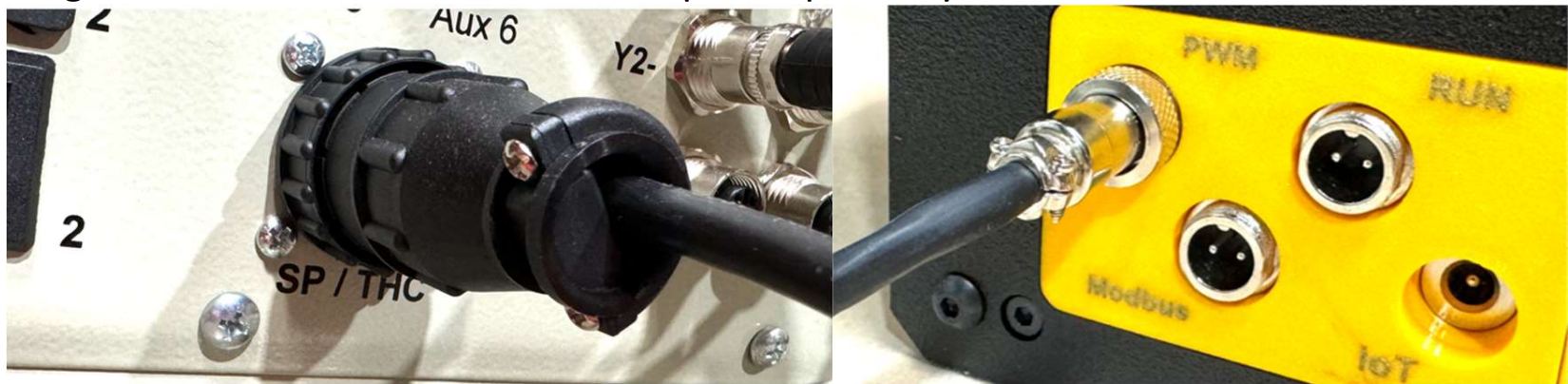
If you’d like to automatically control your spindle via g-code and your CNC machines’ controller: Plug the AMP 14 connector into the spindle port of your Avid Controller and into the PWM port of the VFD.
Open Mach4 and ensure your machine is “disabled”. Under Configure, open the Avid CNC Mach4 Configuration. Within this screen you’ll need to configure the “Spindle Type” value to 3HP Avid CNC Spindle then hit “Save”
Our Avid selection in the Controller Cable listing comes with a 14 pin connector to 6 pin connector. The 14 pin connector is attached to the Avid controller box, and the 6 pin connector goes to the left side of our VFD in the PWM port.
After you have plugged in your control cable, in Avid CNC Mach 4 Configuration under the General tab, select cutting tool: Spindle, and 3HP Avid CNC Spindle and hit save.
Under the MDI screen you can check that automatic control is working by typing m3s6000. Your spindle should spin up to 6000 RPM, and then M5 to stop.


